
For service providers
Do the job
Start and finish each visit, and close the order off properly.
When a customer accepts your price, the job becomes an order with its visits already scheduled. You work through them one at a time.
-
Find the order
New orders appear under Active Orders with a reference such as
ORD-2026-0001. A one-off booking has a single visit; a daily or weekly booking has one for each scheduled day.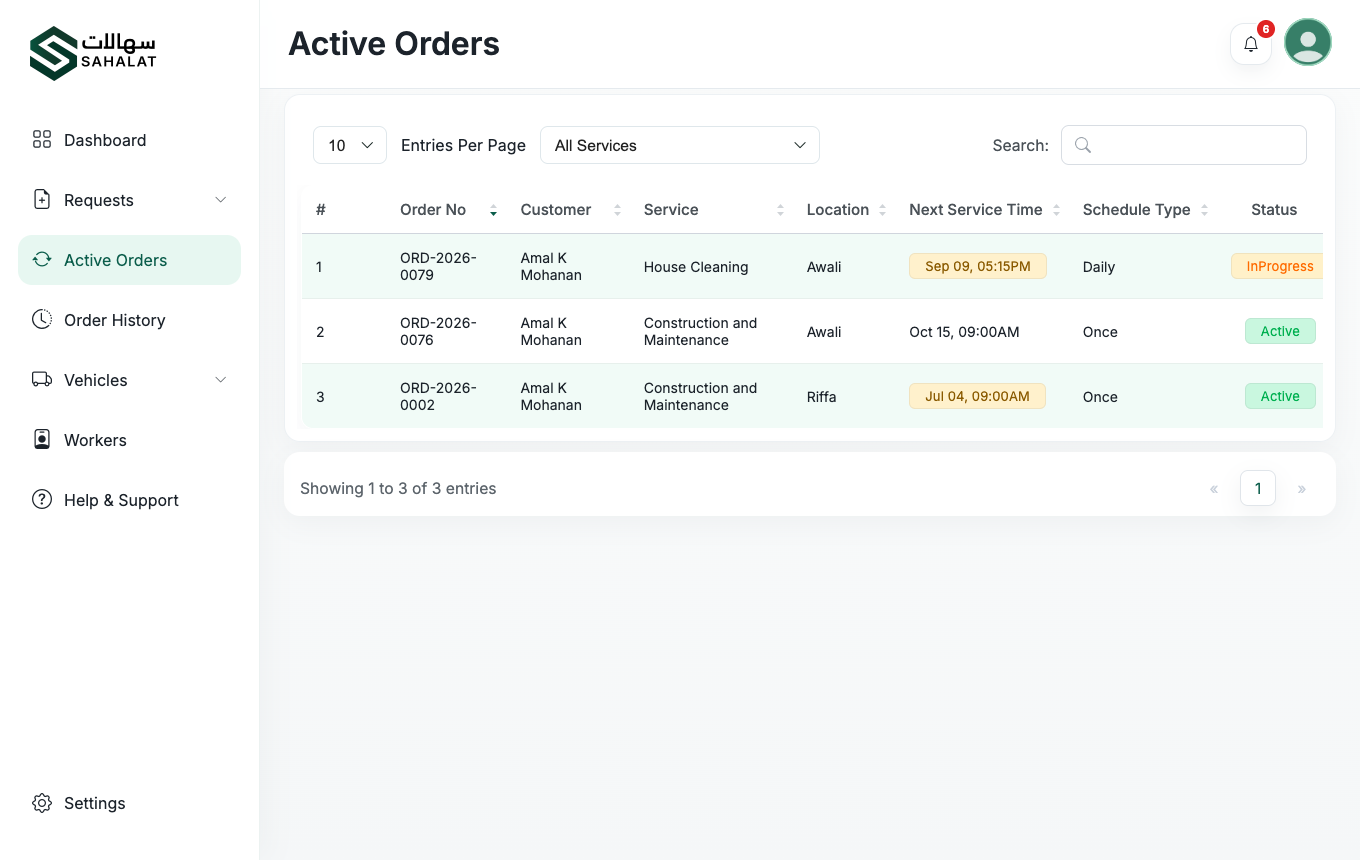
Active Orders, with the next scheduled visit for each job. -
Start the visit
On the day, open the order and start the visit. This records the time you began and tells the customer you are on the job.
-
Finish it and add your notes
Mark the visit complete when the work is done, and add notes on what you did or anything the customer should know. The customer then confirms it from their side.
-
Work through the remaining visits
The order automatically moves to the next scheduled visit. Anything overdue is flagged on your dashboard so it does not get missed.
-
The order closes
When the last visit is confirmed the order is complete and moves to Order History. The customer can now rate you, and the invoice stays available.
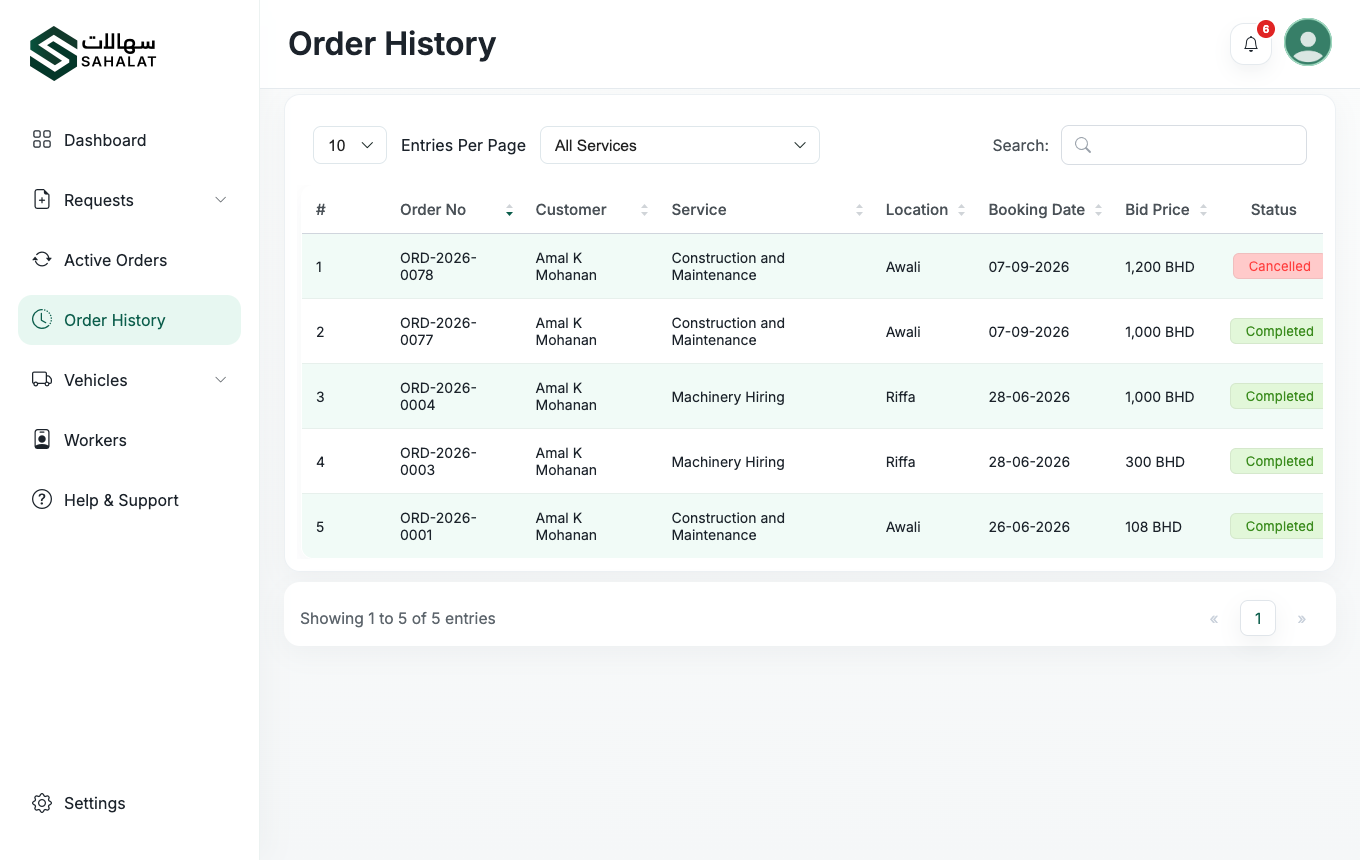
Order History keeps every finished job and its invoice.
If you have to cancel
You can cancel an order and give a reason. The customer is notified immediately, and the order is recorded as cancelled by the provider. Cancel only when you genuinely cannot do the work — customers see your rating and history.
Your rating
After each completed order the customer can leave a score out of five. Your average rating and the number of ratings are shown to every customer comparing offers, so it has a direct effect on how much work you win.



 Continue with Google